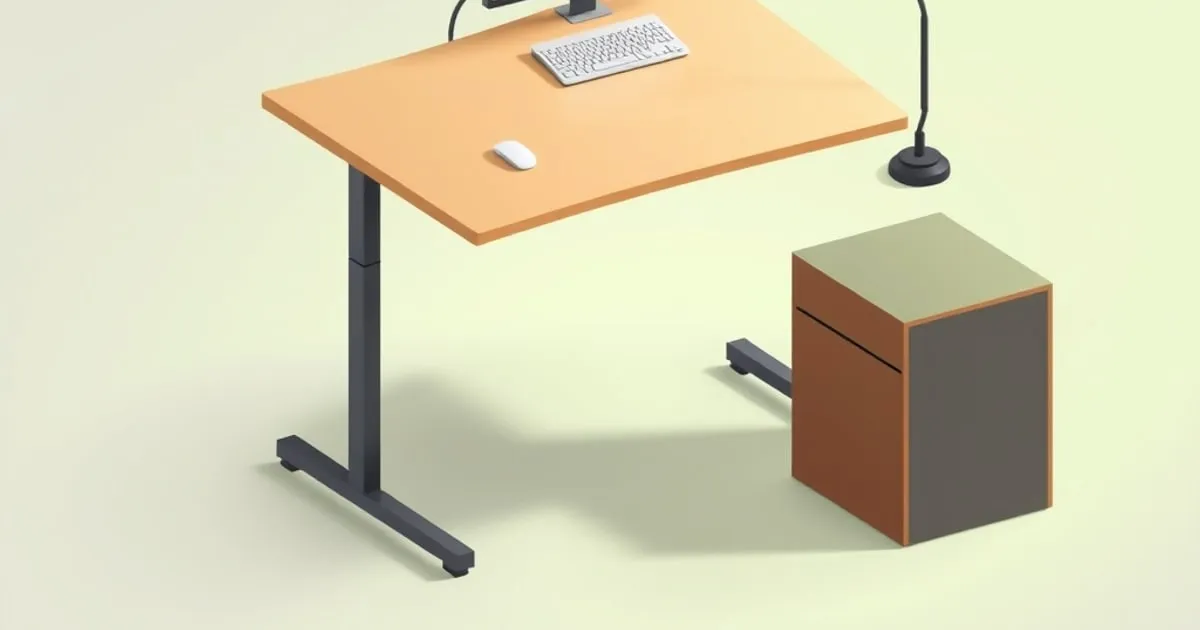
A standing desk stability test is useful when it compares the desk at your working height with the equipment you intend to use. A lift-capacity figure cannot predict visible screen movement, and an uncalibrated hand push cannot establish an engineering stiffness rating.
This guide pairs an observation method with anti-collision and frame checks. It provides a worksheet you can use on a desk you own or a floor model you have permission to inspect. It does not report measurements taken by this site.
What to observe
Separate three kinds of movement:
- Side-to-side sway: lateral movement of the desktop and frame.
- Front-to-back movement: movement toward and away from the user.
- Local movement: flex at a desktop edge, monitor stand, or arm attachment.
Watch the screen and the desk edge together. If only the screen moves, investigate the mounting system before deciding that the desk frame is responsible.
Do not compare a desk at seated height with another at standing height. Record the floor-to-desktop measurement, top dimensions, equipment layout, and floor surface. These details make your notes useful if you later change one part of the setup.
Prepare the desk
Check assembly against the manufacturer’s instructions before judging performance. UPLIFT’s V2-Commercial manual is one example of model-specific guidance covering installation and operation; use your own frame’s manual where it differs.
Confirm that the feet make stable contact with the floor and the desktop is securely attached. Inspect accessible fasteners according to the manual, with the desk stationary and power disconnected where instructed. Do not exceed specified tightening requirements or loosen structural parts to experiment.
Place your normal equipment on the desk within its rated load. Keep heavy items secure and arrange cables with enough freedom for movement. A bare frame observation will not reproduce a setup with a monitor arm extended over the back.
A repeatable observation procedure
Step 1: Record the configuration
Use a tape measure for working height and note the following:
| Field | What to record |
|---|---|
| Desk | Model, frame variant, desktop size |
| Height | Floor to the actual top surface |
| Floor | Hard floor, rug, carpet, and any uneven contact |
| Equipment | Monitor count, arm or stand, computer placement |
| Mounts | Clamp location and arm extension |
| Task | The same short typing and mouse task each time |
A phone video can help compare observations later. Keep the camera in a fixed position where the desktop edge and screen are visible.
Step 2: Repeat ordinary desk work
Type the same short passage and use the mouse normally. Avoid adding guessed force values or leaning your weight onto the desk. You are checking whether the setup supports the task you actually do.
Record what moves, whether it distracts you, and whether movement stops promptly when the task stops. Repeat the task before concluding that an isolated bump represents normal behavior.
Step 3: Compare seated and standing positions
Move to your other usable preset, keeping the path clear, then repeat the same task. Note the height and observation separately.
If movement becomes objectionable only near the required standing height, include that in the purchase or return decision. Lowering the desk solely to make a wobble check look better is not a solution if the keyboard then stops fitting you.
Step 4: Change one setup variable
If the manual permits it, shorten the monitor arm’s reach or reposition equipment, then repeat the same task at the same height. Check whether the desk edge moves differently or only the screen does.
Do not change the floor, desktop, load, and arm position together and attribute the result to one item. Keep the notes simple enough that you can identify which change helped.
Reading the result without invented thresholds
Use observations that describe your experience rather than numerical pass/fail bands:
| Observation | Next check |
|---|---|
| Screen moves while the desk edge appears still | Monitor attachment, arm tension, and arm reach |
| Whole desk rocks on the floor | Foot contact and leveling instructions |
| Desktop moves relative to the frame | Approved top attachment and surface condition |
| Movement appears mainly at standing height | Repeat at the required working height after setup checks |
| One column moves differently or the top tilts | Stop movement and consult the frame’s troubleshooting instructions |
| Movement remains distracting during ordinary work | Compare another suitable frame or discuss return options |
A laser dot on a wall is not a direct measure of desktop displacement. Its movement changes with the pointer’s angle and distance to the wall. A phone’s angle display also does not measure the force applied to the desk. Those methods cannot support a universal “under 3 mm is excellent” claim.
For formal performance claims, ask for the actual report, model configuration, loading, and applicable standard. BIFMA publishes furniture standards; a general standards reference without the relevant report does not certify the particular desk being compared.
Why capacity and stability need separate checks
Read exactly what the manufacturer means by load capacity. A lifting rating concerns the load the mechanism is designed to move under specified conditions; a static limit and a moving-load limit are not interchangeable.
Neither tells you how much a monitor will shake. Frame geometry, connections, foot support, desktop dimensions, and equipment placement all belong in the observation record. Do not treat a higher capacity as a substitute stiffness score.
Likewise, motor count and column-stage count are not stability rankings. Compare the complete frame at usable heights. The buyer’s guide explains how to check the range and moving load before this step.
Anti-collision: what to check separately
Anti-collision is a controller feature, not a stability test. Its detection method and sensitivity depend on the desk. A system may stop or reverse when it detects resistance, but that does not remove the need to keep the path clear.
UPLIFT’s keypad instructions document sensitivity options for particular controls. They also show why settings must be matched to the keypad rather than copied between brands.
Inspect the area above and below the desk before moving it. Check chair arms, storage units, shelves, monitor mounts, and the slack in every cable connecting a moving part to a fixed point.
Do not deliberately collide with a box, book, or person to “verify” protection. Use the manufacturer’s inspection procedure and stop if the movement path is uncertain. Keep children and pets away while adjusting the desk.
Presets and false triggers
A stored height is only a destination. Before recalling it, check that the arrangement under and around the desk has not changed since the setting was saved.
If the desk stops or reverses unexpectedly, first look for physical interference and cable tension. Do not reduce sensitivity merely to force the desk past an obstruction. Record the display and follow the relevant manual.
A reset may involve travel to the bottom of the range. Clear that entire path before beginning, and remain at the control. The reset and error-code guide covers the difference between UPLIFT reset prompts and Vari fault codes.
Fixable setup issues and frame limitations
Check accessible assembly connections, foot contact, desktop mounting, and monitor-arm setup before replacing the frame. Repeat the same observation after each approved adjustment.
Avoid adding an unapproved brace, heavier top, or caster set as an assumed cure. A heavier desktop changes the load; it is not guaranteed to improve movement. Review the desktop materials comparison before changing the surface.
If the assembled desk still distracts you at a height that fits, record that result and discuss it with the seller while the return terms apply. The Uplift V2 versus Fully Jarvis comparison helps compare configurations without claiming that either has passed this site’s physical test.
FAQ
Is a high-capacity standing desk always more stable?
No. Capacity describes a load limit under the manufacturer’s conditions. Observe movement separately at your working height and with comparable equipment.
Should I test anti-collision with an object?
Do not introduce an obstacle to provoke a collision. Keep the path clear and follow the inspection instructions for the exact desk and keypad.
What should I record for a warranty or return discussion?
Record the model, desktop size, working height, equipment arrangement, floor contact, and the movement you observe during ordinary use. Include a short video if the support process allows it.


